If you use Microsoft Outlook to manage your life, not having access to it can seem like hitting a dead end. That’s why it’s recommended you backup your Outlook Personal Folder often, especially if you want to transfer all your emails, calendar, contacts and tasks to a new computer. In this article, we show you how to do it. Depending on the version of Outlook you have installed, the method might look a little different, I’ll show you the different ways available for you to do it.
How to Backup and Restore in Microsoft Outlook 2010
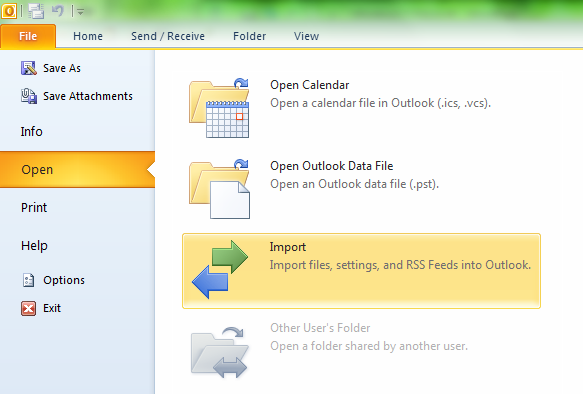
Click File then click Open then click Import.
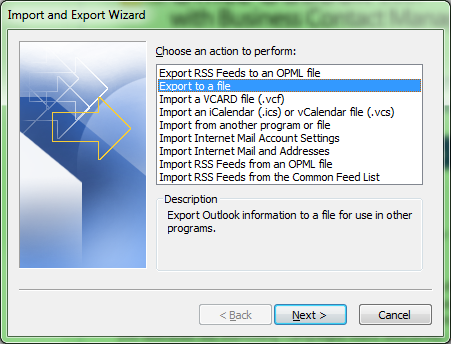
This will start the Import and Export wizard.
Select the action ‘Export to a file’ then click Next.
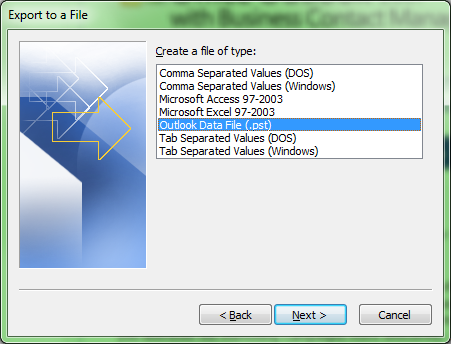
Select Outlook Data File (.pst) then click Next.
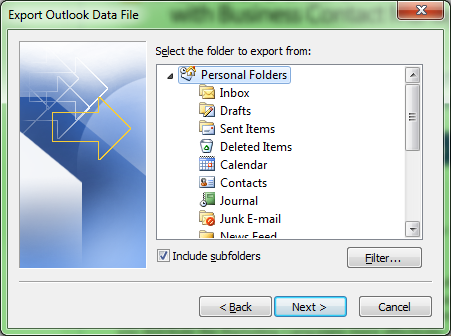
Select Personal Folders and make sure Include subfolders is checked.
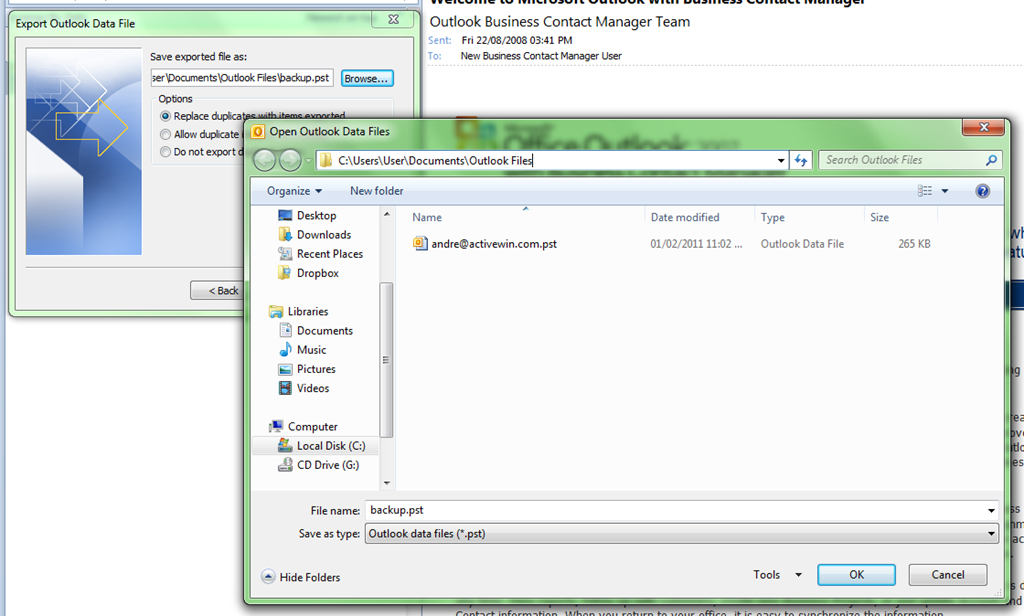
Browse to where you would like to have it stored, such as a thumb drive, external hard disk, another partition or location on the hard disk. Click OK.
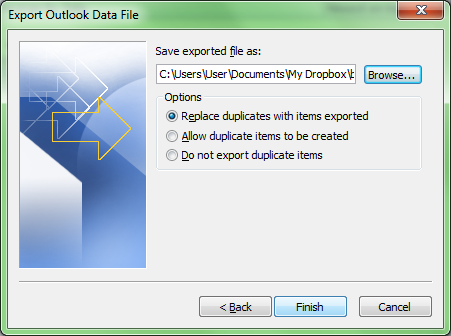
Click Finish to complete the action.
How to Backup and Restore in Microsoft Outlook 2007/2003/2002
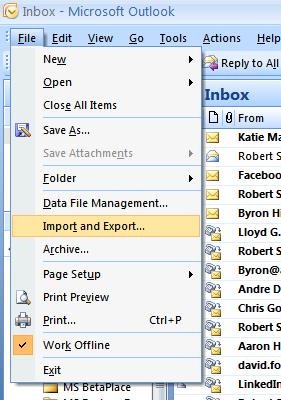
Click File > click Import and Export.

Follow the same wizard to backup.
Another solution for backing up your Outlook Personal folder is a free tool from Microsoft, you can download here. The Personal Folders Backup download creates backup copies of your .PST files at regular intervals, in Outlook 2002 and later versions, making it easy to keep all of your Outlook folders safely backed up.
By default, this add in does not work with Outlook 2010, you can enable it using the instructions in this article.
How to Restore your Outlook Personal Folder
Its easy, just launch Microsoft Outlook.
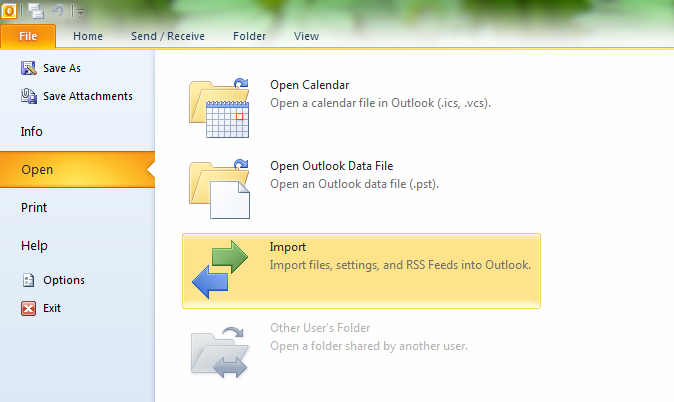
Click File then click Open then click Import.
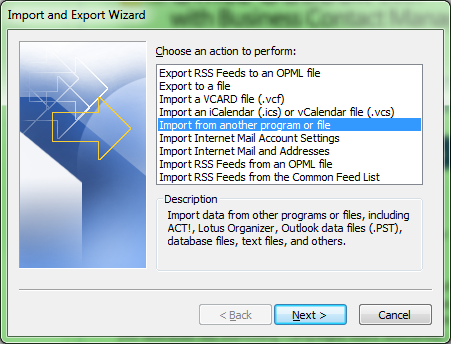
This time, select Import from another program or file then click Next.

Select Outlook Data File (.pst) then click Next.
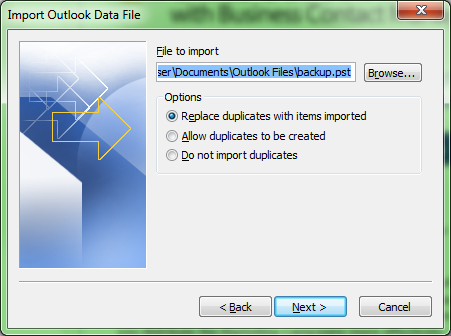
Browse to where you have the Outlook Data File store and click open then click Next.
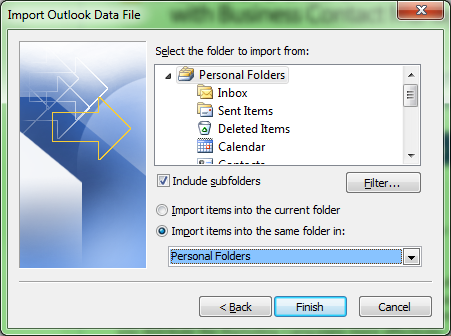
Accept the default settings then click Finish.
Related Posts
-

MacBook users need to back up their hard drives full of pictures, documents, media files…
-
Here is a guide on how to setup and use macOS Smart Folders to stay…