If your system partition, where Windows, applications are installed, personal files and settings exist is beginning to fill up you have a number of options such as freeing up disk space by uninstalling applications or move files from the local drive to an external hard disk. This can be a chore though, because you just don’t know when a need to use an application might arise or you might need to reference a file, which means plugging in your external hard disk and turning it on. Although these are minor inconveniences, there is still a better option, such as installing a new hard disk and separate your personal files from your system drive.
The key benefits of this are;
- your system drive does not full up easily
- better performance
- in the event of a disaster your personal files are kept much safer.
This is also handy for users who might be moving to Solid State Disks, which are fast, but small in storage capacity and still expensive. The great thing too about SSD’s is, you can use them in combination with a mechanical spinning hard disk. So you can have an SSD just for your operating system and applications and keep your large files such as videos, pictures and music on the hard disk when you need to access and store them. In this article, we take a look at such a scenario, based up on redirecting your Windows 7 Personal Folder (or User Folder or what is known as the account folder for Documents, Music, Pictures, Videos to another storage location. Please note, this also works great for partitions too, so if you have a big old hard disk in your computer, you can partition it and redirect some of your user folders there.
How to Change The Location of Your Personal Folders in Windows 7

To open your User folder, click Start > and click on your account name up at the top of the Start menu.
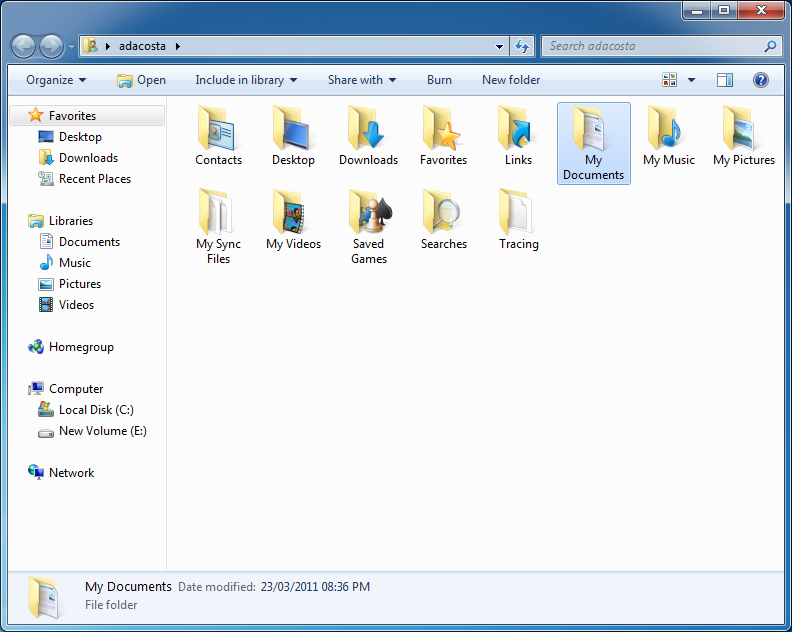
In this folder you will see all the common locations where you store and organize your different data types, like Word documents, spreadsheets, pictures, music, videos and even contacts and saved searches. Before we start redirecting any of these folders to a new storage location, lets prepare the location.

A few months ago, I had created a new partition for backup files, I am going to be using it to store my Documents folder. The first thing I want to do is create a new folder here with an identifiable name to indicate that it belongs to me. Click the ‘New folder’ button on the command bar and give a name, I going to call it adacosta also since that is my user name on this computer.
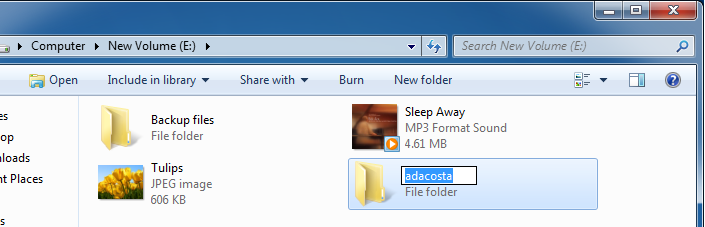
Creating a folder for our redirected Personal folders.
Another benefit of doing this too, if you have other user accounts on the computer and would like redirect their user folders, you won’t overwrite or damage files from either account.
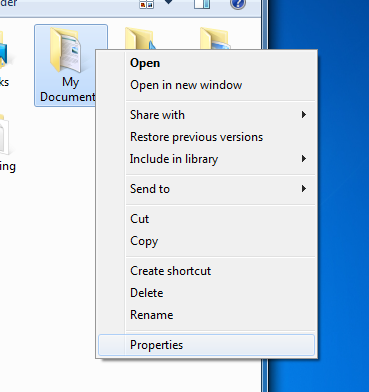
Once you have created and given the folder a name, go back to your user folder, select the folder you would like to redirect, right click it and click Properties.
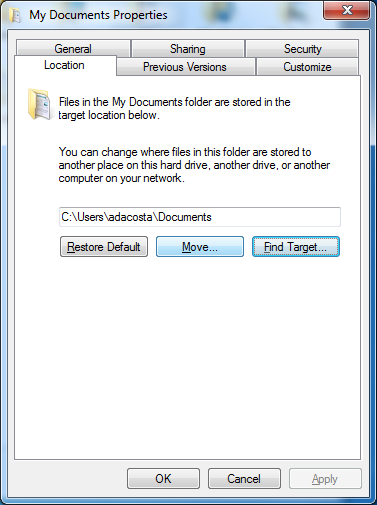
This will bring up the properties dialog of that folder, click the Location tab. As described, you can change where files in this folder are stored to another place on tis hard drive, another drive, another computer on your network. Just like we intend to do, click the Move button to begin.
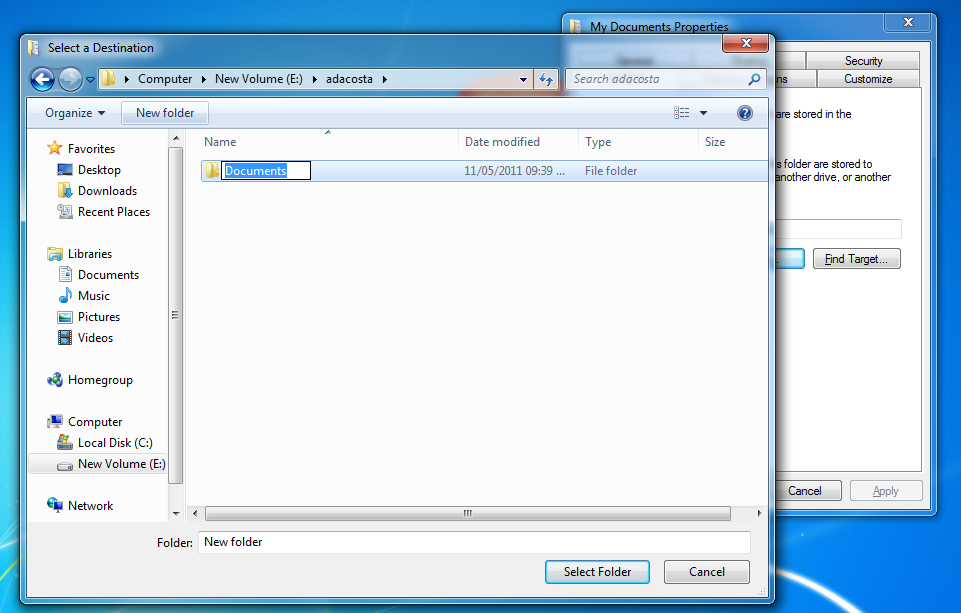
This will bring up the ‘Select a Destination’ window, navigate to the location where you would like to have the Documents folder stored. In my case, it’s on the E:\ Volume in the adacosta folder. I had forgotten to also create a destination folder for it, so I will click ‘New folder’ on the command bar and Select Folder to change its location.
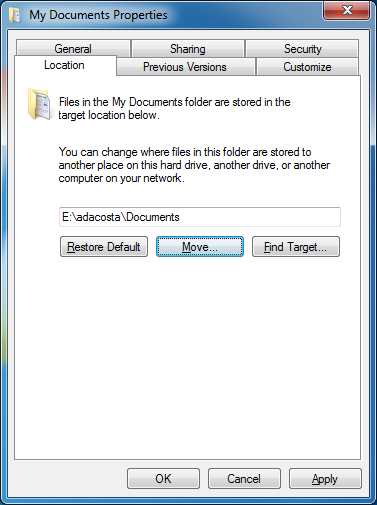
The new location has now moved from C:\ to E:\ to complete this action, click Apply and OK.
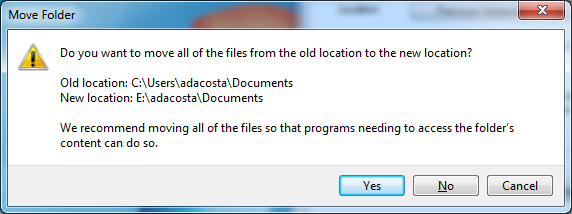
Click Yes when this dialog appears.
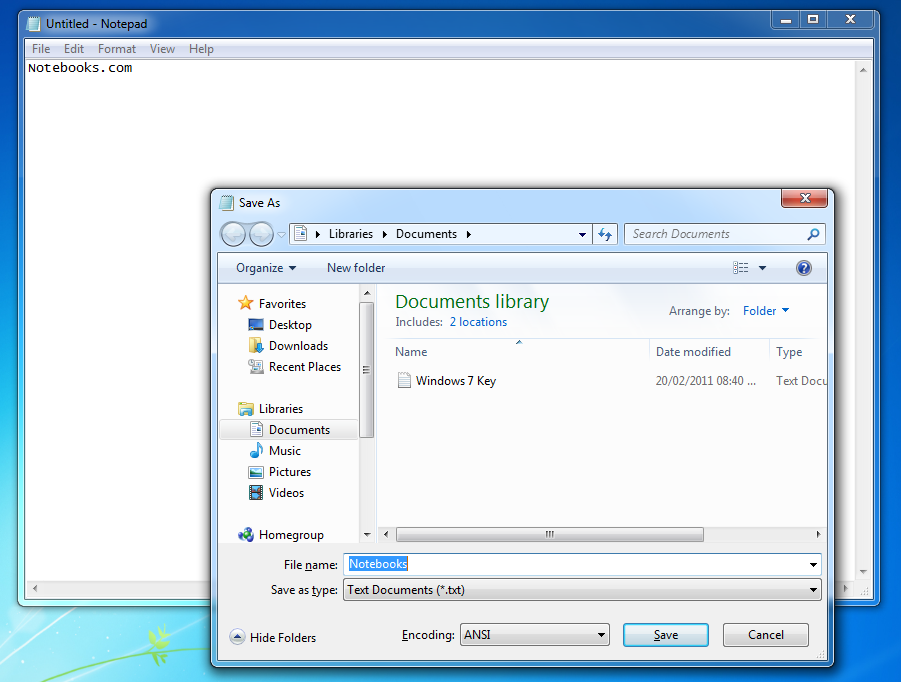
Any files created from now on that are Saved to the Documents Library in Windows 7, will automatically be saved on the E:\ drive, see below:
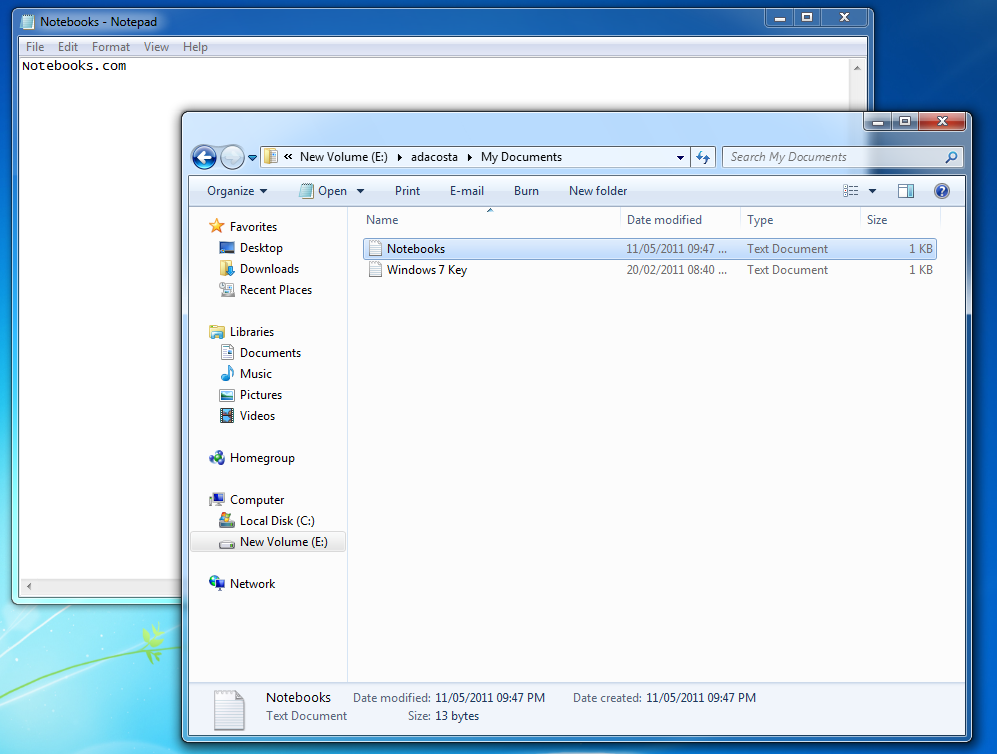
Remember, you can repeat this same step for other personal folders such as Music, Pictures, Videos or any of the others available in the User folder.
Related Posts
-
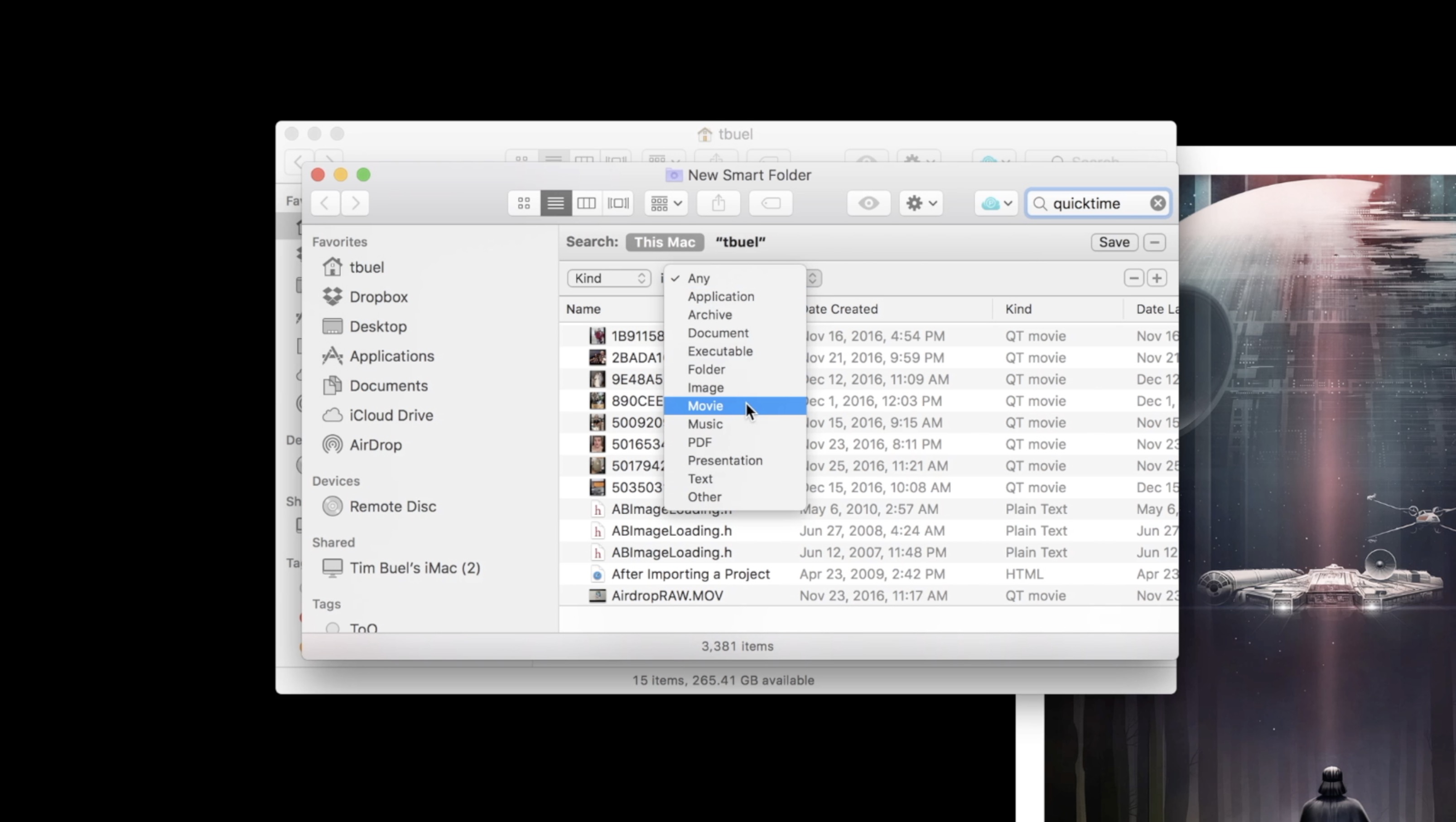
Here is a guide on how to setup and use macOS Smart Folders to stay…
-
Microsoft’s Windows operating systems let users do a lot of things. Every day, machines loaded…
-

Even though Windows 10 has made upgrading Windows easier than ever, sometimes you still need…