• Search
  • Home
  • Deals
  • Reviews
  • How To
  • Contact/Tips
  • Create Your Custom Notebook
  • Home
  • Deals
  • Reviews
  • How To
  • Contact/Tips
  • Create Your Custom Notebook
  • site logo

How to Setup Gmail in Outlook

AndreFebruary 2, 2011
How ToHowToTutorials

If prefer using a rich email client for messaging and calendaring, but you want to use your favorite Web Mail service with it, you can. In this article we take a quick look at how to setup Googles popular Gmail in Microsoft’s popular Email client, Outlook 2010.

The advantages of using Gmail in Outlook include:

  • The ability sync and keep a local copy of your email while also keeping a copy on the Gmail server. So if you are ever offline, you can always access your messages.
  • The ability to use one email client with all your email accounts.
  • Spam protection, Outlook includes advanced tools to protect against spam and junk mail.

How to set up Gmail in Outlook:

1. Launch Microsoft Outlook (I am using Outlook 2010).

image

2. Click File > Info > then click Add Account.
image

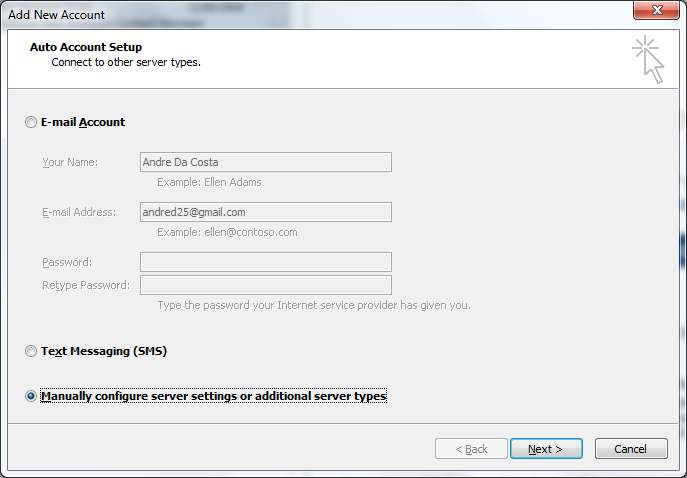
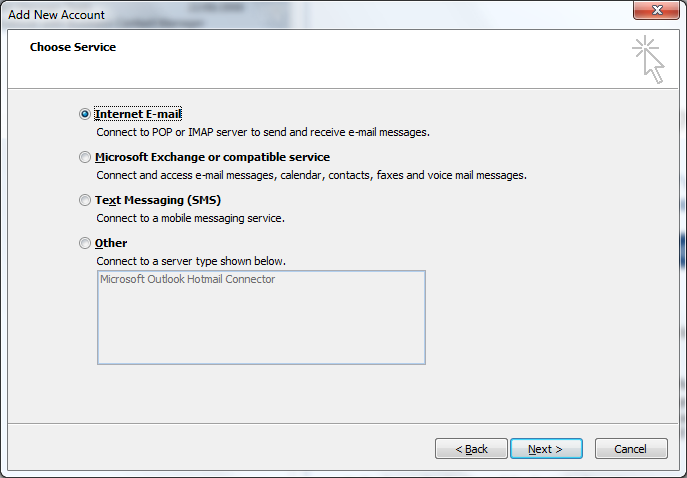
3. Select, Manually configure server settings or additional server types
image

4. Click Next.

image

5. Enter the following information:

  • Your name:
  • E-mail AddressServer Information
  • Account Type: select IMAP from the list box
  • Incoming mail server: imap.gmail.com
  • Outgoing mail server (SMTP: smtp.gmail.com 

    Logon Information

  • User Name: enter your password again
  • Password: your password for this account.

6. Click the More Settings… button.

7. Go to the Advanced tab and enter the following information:

  • Incoming server must be 993, and must use SSL encryption.
  • Outgoing server can use 587, TLS encryption.
  • For the Incoming server encryption, select SSL
  • For the Outgoing server (SMTP) encryption, select TLS

8. Click the Outgoing Server tab.

image

9. Check the box ‘My outgoing server (SMTP) requires authentication, then click OK.
image

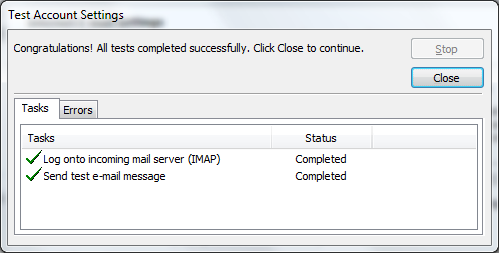
10. Outlook will run a quick test.

image

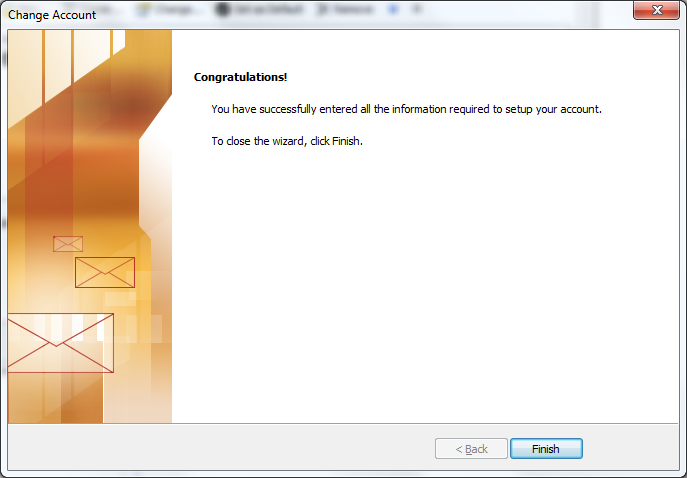
11. Click Finish to complete setup and you’re ready to use Outlook to check your Gmail account.

Share this:

  • Share
  • Email a link to a friend (Opens in new window) Email
  • Share on X (Opens in new window) X
  • Share on Facebook (Opens in new window) Facebook

Related Posts

  • How to Setup Parental Controls on MacOS Sierra

    Here is a guide on how to setup Parental Controls on MacOS to prepare your…

  • How to Email Big Files on Mac with Mail Drop

    Even when you have all the power and versatility of a full Mac at your…

  • 10 Tips for Mastering the Microsoft Surface Pro 4

    The Microsoft Surface Pro 4 balances perfectly the needs of most laptop users who need…

Advertisement

AccountEmail ClientgmailGoogleIMAPMicrosoft OfficeMicrosoft OutlookOutlook 2010Personal Information ManagerManagerSetup Gmail in OutlookSMTPSync MailWeb Mail

Related Posts

  • Google Instant Search — Your Searches Now Faster and Smarter

  • Google Chrome Cr-48 Hacked to Run Mac OS X, Ubuntu & Windows

  • Office 2010 Beta Expiration is Approaching

  • Office 2011 for Mac Trial Now Available for Download

  • Google Voice Now Available for Everyone in the U.S.

  • Google Wave Opens: Now Everyone Can Surf the Wave

  • Microsoft Office on SkyDrive Now Available

  • Docs.com Gives Peek Into Office 2010 Web Apps

4 Responses

  1. February 3, 2011 mentorlog Reply

    I was confused about outlook connector for hotmail, Is it really required?

    • February 3, 2011 bill Reply

      You do need it now. For advice on setting it up, go to:

      https://living-with-outlook-2010.com/emailaccounts/2010/08/the-hotmail-outlook-2010-connection-installing-and-using-the-outlook-hotmail-connector/

      or

      https://www.living-with-outlook.com/outlook-hotmail-connector.html

  2. February 3, 2011 bill Reply

    Nice article on setting up a Gmail Outlook connection. To connect other accounts, visit:

    https://living-with-outlook-2010.com/emailaccounts/ (Outlook 2010 users)

    or

    https://www.living-with-outlook.com/outlook-web-mail.html (Outlook 2007 users)

  3. July 31, 2011 windowsoutlooker Reply

    great post very spot on and informative thanx!! will b back 4 sureeee

Leave a Reply Cancel Reply

Your email address will not be published.

Recent Posts

  • Lenovo IdeaPad 530S: Thin & Light Metal Notebook Under $800
  • Lenovo IdeaPad 330S: Power & Portability Under $500
  • $249 Windows 10 Laptop Arrives With Style & Choice
  • Best of CES 2018: The Tech You Need This Year
  • Razer Project Linda Turns Your Phone Into a Badass Laptop

Recent Posts

  • Lenovo IdeaPad 530S: Thin & Light Metal Notebook Under $800
  • Lenovo IdeaPad 330S: Power & Portability Under $500
  • $249 Windows 10 Laptop Arrives With Style & Choice
  • Best of CES 2018: The Tech You Need This Year
  • Razer Project Linda Turns Your Phone Into a Badass Laptop