The day you realize that your notebook is old and has started to take longer to open applications and perform even simple tasks isn’t a fun one.
With a New Year on the way, rather than buying a new notebook or desktop, why not make a New Year’s resolution to give your notebook new life. One of the most common pieces of advice for breathing new life into your computer is to upgrade the RAM, graphics card or hard drive; but what if you don’t want to upgrade any hardware?
If so, then you are in luck; Notebooks has created a guide to clean malware, spyware and crapware off of your computer and give it new life.
No matter how careful you are, getting infected by spyware or malware is bound to happen to you or someone you know while browsing the web.
At the very least you should diagnosis your computer once a year. If you spend significant amounts of time on the internet, installing software/games and playing games online then you should diagnosis your laptop for malware, crapware, spyware more often.
If you go to a computer geek for this service they will charge you anywhere from $50 to $300; but with this tutorial you can get rid of junk files, virus and malware for free with help of software available online.
Please note that this guide is focused on how you can use software to improve performance, it will not focus on upgrading hardware.
Step 1: Get rid of all Crapware on your computer
These days almost all computers come with free trial software which you don’t need and these programs will often launch automatically every time you boot your computer. Because of this your notebook may slow considerably.
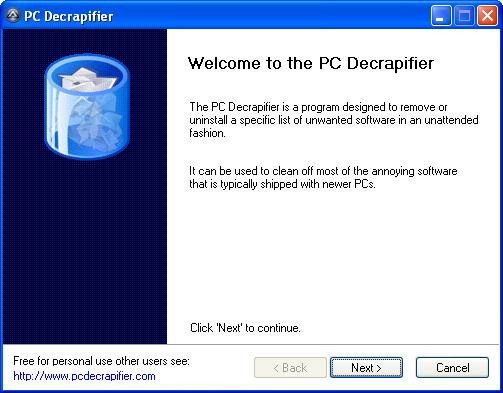
A free utility called PC Decrapifier helps identify and remove any startup programs that came with your computer or you that you have installed unknowingly on your notebook or desktop. It will also help you to reset your IE home page if it has been changed by spyware.
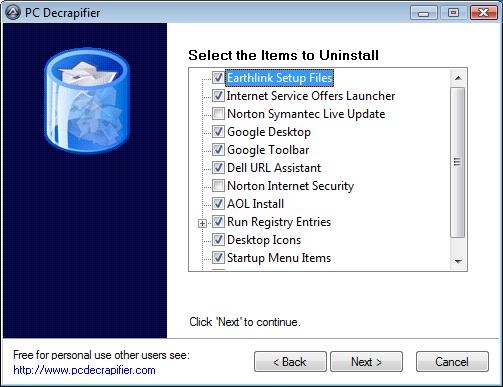
The PC Decrapifier is designed to remove a specific list unwanted software in an unattended fashion. Before running, the user may select exactly what software should be removed.
Step 2: Remove Spyware from your laptop/ Desktop with SuperAntiSpyware
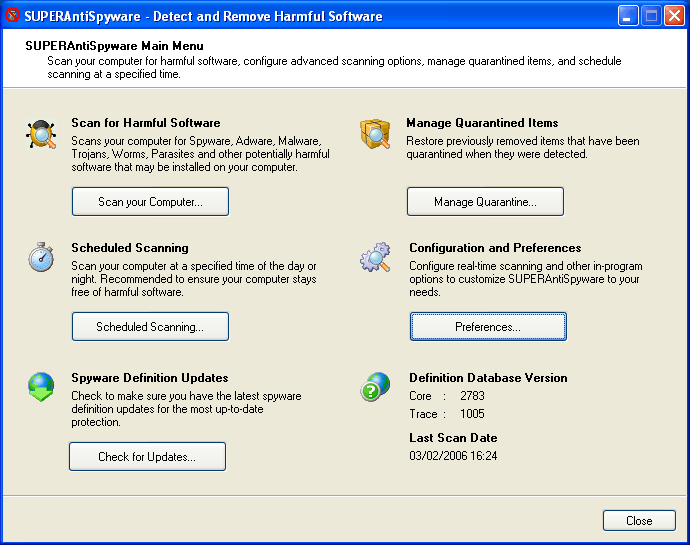
SuperAntiSpyware is a free program that detects and removes spyware from your system. It has a very high detection rate for finding spyware, adware, trojans, worms, keyloggers, ZLob, SmitFraud, WinFixer, VirusRay, parasites, rootkits and other malware which it can remove without charging you for a professional version.
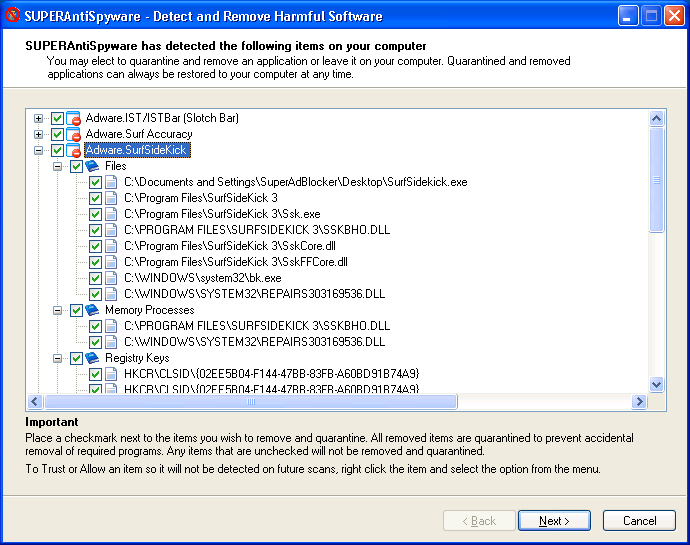
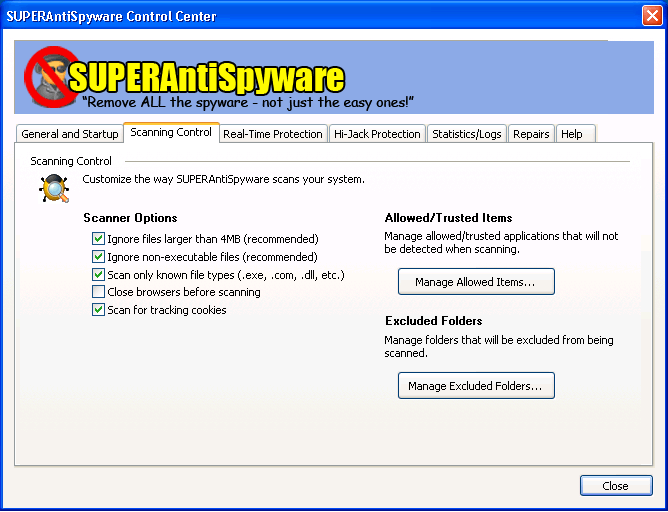
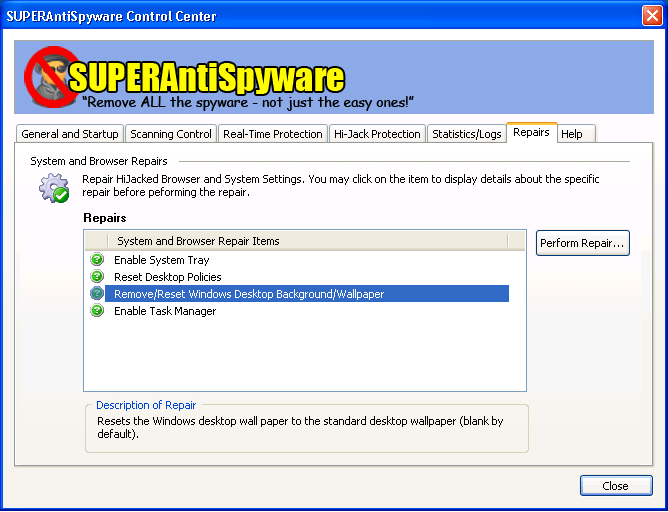
The program provides complete and custom scanning of hard drives, removable drives, memory, registry, individual folders and includes the ability to trust items and exclude folders for complete customization of scanning.
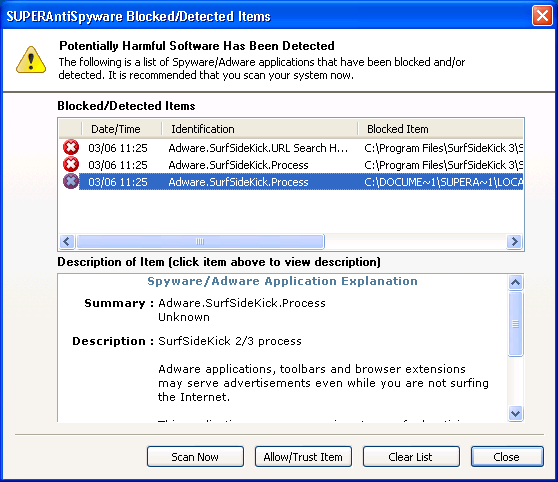
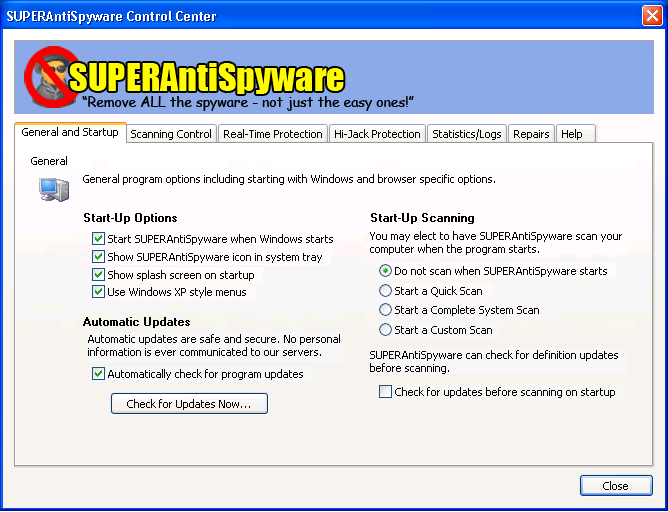
You can download SuperAntiSpyware here. Download the file to your local disk and install it with default option. When it is first run a window will pop up and will ask you for default rules and to check for update. After accepting default rules and installing updates run the application and click on the scan your computer button and select the drive which you want to scan. From there, you can remove the infected files that are found.
Step 3: Use another tool Spybot Search & Destroy to remove spyware
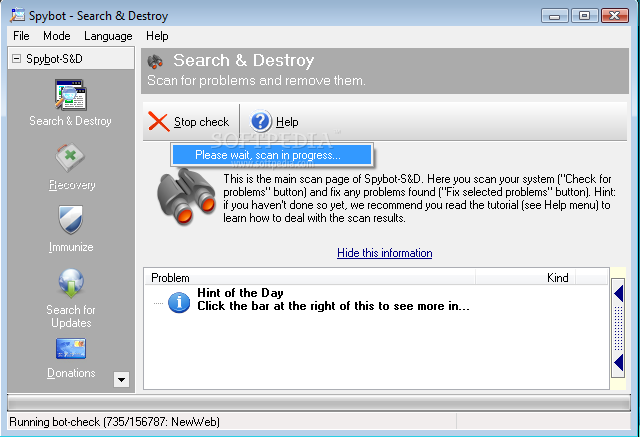
Spybot Search & Destroy a free spyware removal tool that is designed to remove all hidden spyware programs. Spybot-S&D can also clean usage tracks, an interesting function if you share your computer with other users and don’t want them to see what you have been working on. And for professional users, Spybot-S&D allows you to fix some registry inconsistencies and provides extended reports.
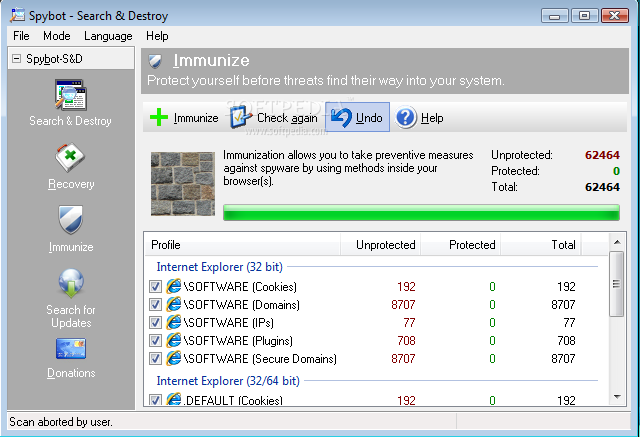
The program checks your system against a comprehensive database of adware and other system invaders. Scan results are arranged by groups in a tree fashion, and a sliding panel lets you instantly view information about a selected item to help you decide whether to remove it.
Spybot Search and Destroy also has several features including Immunize, Secure Shredder, Hosts File blocks and System startup tools to help you revamp your computer.
Related Posts
-
Carrying a bulky charger can really cut down on the portability of your notebook. We've…
-
Long a big name in smartphones and mainstream notebooks, Samsung is preparing to battle Alienware,…
-
The Samsung Notebook 9 gets an update according to the company's CES 2017 announcement that…