How to Increase External Hard Drive Performance in Windows Vista and Windows 7
In Windows Vista and Windows 7 you can increase the performance of external hard drive by increasing its speed in just a few easy steps. This is possible because Windows Vista and Windows 7 operate external hard drives connected by USB differently than internal drives. By default, in Windows 7 and Vista, write catching is disabled so that you can safely remove the drive at almost any time. This works perfectly fine if you insert and remove your external hard drive very frequently; but if you have a large hard drive that you never disconnect from your computer write caching is still disabled which can decrease performance.
Follow the steps below to increase the performance of your external hard drives. The steps are same for Windows Vista and Windows 7 except the last few, but we will point out any differences in the guide below.
Step1: Click on the Windows start button, then right click on Computer and select Manage.
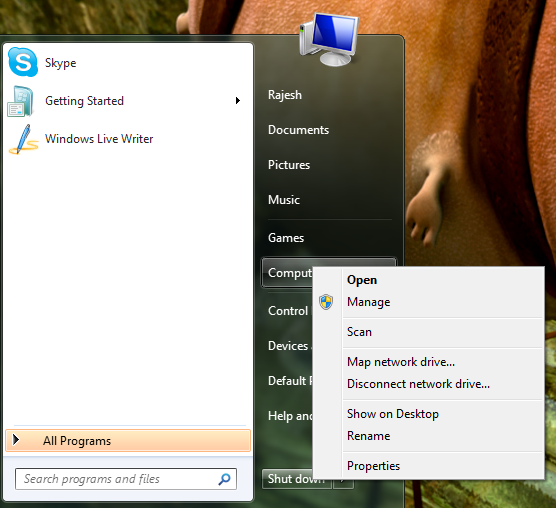
Step2: Click on Device Manager on the side menu.

Step3: Expand Disk Drives and select your external hard drive from the list.

Step4: Right click on the drive and select properties.
Step5: (Vista only) on the Policies tab, select Optimize for performance
Step 6: (Vista only) Next, check enable write caching on the disk and enable advanced performance as shown below
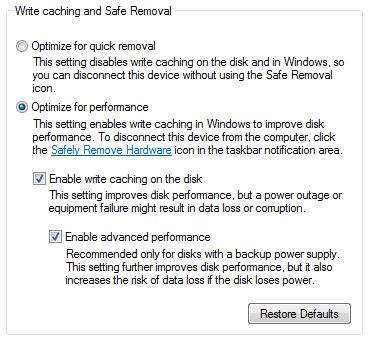
Step 7: (Windows 7 only) Click on Enable write caching on the device.
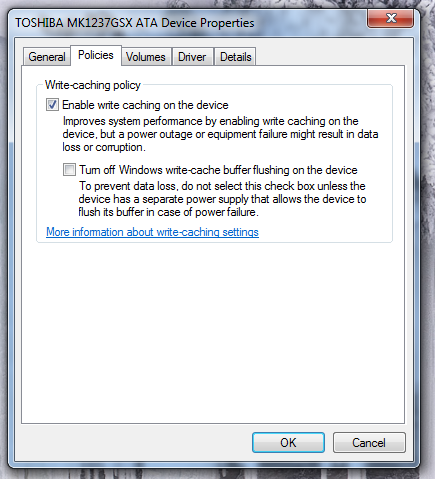
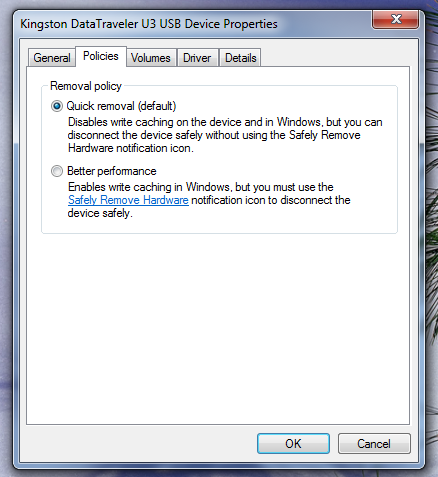
Step 8: Press OK and Reboot the machine to enjoy the increased performance.
Category: How To, News, Notebooks
Comments (13)
Trackback URL | Comments RSS Feed
Sites That Link to this Post
- How To Configure Asterisk: A Typical Home Asterisk PBX Setup | December 13, 2009
- Austoon Daily » How to Increase External Hard Drive Performance in Windows Vista and Windows 7 | December 15, 2009
- tweak windows xp | November 12, 2011


You'd better warn someone about the potential data loss issues. With write-caching enabled, you have to be absolutely sure that you use the Safe Device Removal rather than just simply unplugging the drive.
For me, that's a performance penalty I'm willing to take.
Dittos Chad, man I would not even THINK about doing this. I recall the days of yesteryear when I had my externals set for Optimized Performance and a crash would happen or about a billion other possibilities (such as Visa rebooting on its own to install updates I did not want yet because I was running a backup or something) and I get back to my computer to find a trashed partition on the external drive because data only got written halfway. THIS IS DANGEROUS and I am shocked Microsoft still gives us this option as deadly as it can be for data,
I am guessing that the same policy changes can be applied to an internal drive to enhance performance, without concern of loosing any data at shutdown, sleep, etc,
Thank you for this guide,but, for Step 7 only, my browser (IE8)only shows a red x.Can you please tell me how I can view Step 7?
Thanks and regards,
Roy Whitethread
It's not just you roywhitethread, it looks like the file http://www.notebooks.com/2009/12/13/wp-content/… is just plain missing on their server.
Sorry about that, working on fixing it.
Josh
I think that to be complete, you would need at least a few benchmarks to illustrate the difference in performance. It seems to me that if, for example, the performance were to double, it might be worth the risk under certain circumstances. If you are talking a few percent improvement, it would be folly to risk the integrity of a backup device, possibly irrecoverably, for minimal gain. How much of a performance increase have you seen?
he software that comes with the FreeAgent is easy to use. It includes some simple diagnostics, and automated backup controls, including setting specific folders and backup times. The software also includes an encryption option. While there are several steps to the encryption and decryption process, it’s nice to know that if someone takes my drive, they won’t get my data. I tested the drives by backing up my 168GB of media, documents, pictures, and studio sessions on all the drives…
Hello There. I discovered your blog using msn. That is a really well written article. I will be sure to bookmark it and return to learn extra of your helpful information. Thank you for the post. I will definitely comeback.