A Simple Guide to Virtual Operating Systems

| October 17, 2009 | 3 Comments

John Herrman over at Gizmodo has written a nice guide that explains how to install and run a virtual operating system for free (as long as you own the operating system, of course).


A virtual operating system is one that is running within another operating system. Imagine running Windows 7 on your Mac, or Linux inside Windows (or vice-versa).
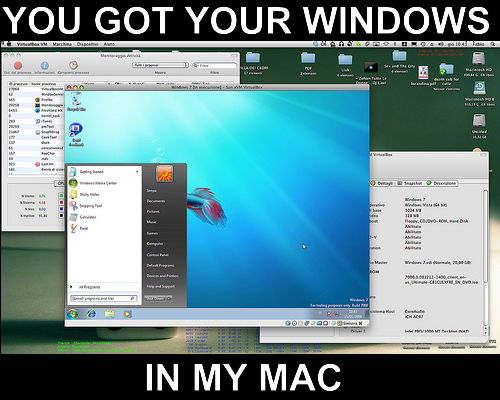
windows in my macMaybe you are interested in this whole Linux” thing, or wanted to give Windows a try without installing a completely new operating system on your computer. Or perhaps you rely on Windows only software, but want to buy a Mac. Running an operating system with VirtualBox makes this simple and free. Check out the guide and go experiment!

Tags: , , , , ,

Category: News

Comments (3)

Trackback URL | Comments RSS Feed

  1. Rajesh Mishra says:

    I would like to add few more points here. If you have installed ubuntu as a host on virtualbox inside windows then to get the screen you have to install guest additions from ubuntu. you can follow below steps.

    1. Start guest OS (ubuntu) on virtulbox.

    2. Mount VirtualBox Guest Additions by clicking on Device > Install Guest Additions.

    3. It will be mounted on your guest OS. open and see the virtualboxadditional installer corresponding to your OS.

    4. Open terimnal and run that with sudo permission. for example Sudo sh /media/cdrom$/VBoxLinuxAdditions-x86.run

    where cdrom$ is like cdrom0, cdrom1 etc depending on your mount & change name of VBoxLinuxAdditions-x86.run depending on your OS version.

    5. Afer running above command you should get message guest addition installed succesfully then reboot it and enjoy the full screen by pressing host +F.

  2. Rajesh Mishra says:

    I would like to add few more points here. If you have installed ubuntu as a host on virtualbox inside windows then to get the screen you have to install guest additions from ubuntu. you can follow below steps.

    1. Start guest OS (ubuntu) on virtulbox.

    2. Mount VirtualBox Guest Additions by clicking on Device > Install Guest Additions.

    3. It will be mounted on your guest OS. open and see the virtualboxadditional installer corresponding to your OS.

    4. Open terimnal and run that with sudo permission. for example Sudo sh /media/cdrom$/VBoxLinuxAdditions-x86.run

    where cdrom$ is like cdrom0, cdrom1 etc depending on your mount & change name of VBoxLinuxAdditions-x86.run depending on your OS version.

    5. Afer running above command you should get message guest addition installed succesfully then reboot it and enjoy the full screen by pressing host +F.

  3. InsaneWonko says:

    so what about prayaya, it claims to be a virtual operating system, and I installed MS office on it, it works pretty well off a USB drive.

Leave a Reply